
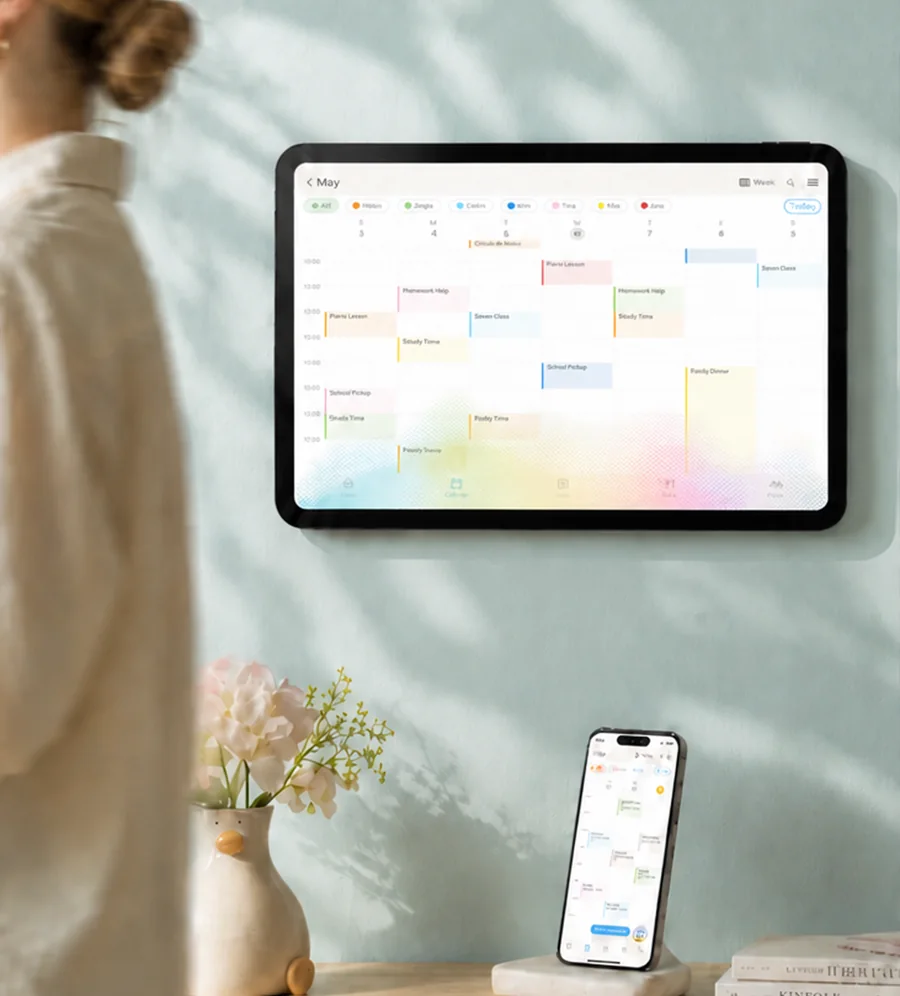
A practical worksheet for deciding whether paper, an app, a display, or a combination will help.
Imagine pickup moves from 3:30 to 4:15. One parent sees the message at work. A grandparent is driving. Your child wants to know who will be waiting outside. Where does the change go, and how does everyone know what happens next?
Start there when choosing a family calendar. A beautiful screen might suit your household. So might the calendar already on your phone, with a simple paper view for your child. Before buying or moving everyone's information, use a few commitments from your actual week to decide what you need.
Map who needs the plan before choosing a screen
Choose three events that involve more than one person. Include something that changes occasionally, something children want to understand, and something another caregiver handles. Fill in this table together; the first row is an imaginary example.
| Event | Person responsible | Who needs to see it? | Where will they be? | Who confirms changes? |
|---|---|---|---|---|
| Tuesday pickup | Grandparent | Parent, grandparent, child | Work, car before departure, home | Grandparent replies to the parent |
| Your event: ______ | ______ | ______ | ______ | ______ |
| Your event: ______ | ______ | ______ | ______ | ______ |
| Your event: ______ | ______ | ______ | ______ | ______ |
Be specific about responsibility. “Soccer at five” identifies an appointment. “Alex takes Sam; Jo brings Sam home” identifies the jobs. Agree on those jobs before treating a calendar entry as a settled arrangement.
Then look at access. Does each adult have a suitable phone and want to use it for this? Can a child understand the words or pictures? Can someone read a shared screen from where they normally stand? If children move between homes, which information belongs in each place?
An app and a wall display can also work together. Skylight advertises a free mobile companion app for Calendar Max; Cozi documents calendar access from computers and mobile devices. These are examples of advertised options, rather than a hands-on comparison. Skylight product information, Cozi FAQ.
Ask your child what they would like to know about tomorrow. Their useful view might contain only pickup, an activity and dinner. They do not need to maintain the adults' full schedule to take part in family planning.
Compare the smallest setups that could meet those needs
Use the table below as questions to investigate, rather than a ranking. For any digital option, check the particular app, device and plan you would use.
| Setup | Where would people see or edit it? | Who maintains it? | What should you check before choosing? |
|---|---|---|---|
| Paper calendar | At its physical location | Whoever writes changes; agree how absent people hear them | Is a pen-and-paper view already enough? |
| Existing shared app | On the supported devices people can access | Event owners update their commitments | Does everyone have access and suitable permissions? |
| Dedicated display plus app | At the display and through supported companion access | Event owners, plus someone managing setup | Hardware, placement, connectivity and any subscription needed for your chosen features |
| Hybrid | A shared record plus a selected paper or screen view | Name who refreshes the second view | How will everyone recognize an outdated copy? |
Consider a hypothetical family whose adults already consult a shared app, while their child needs to see who collects them. A daily card near the door may fill the gap without a purchase. Another household might find phones inconvenient during breakfast and want everyone to inspect the week in one place. A dedicated display could be worth considering if it fits their space and budget.
Before moving information, agree where the latest plan lives. If someone writes on a paper copy, who updates the shared record? If an event changes in an external calendar, where should the family edit it next? Two attractive views are little help when nobody knows which one is current.
Check synchronization narrowly. Skylight documents two-way options for both Google and iCloud, with new events needing the appropriate synced-calendar assignment. That does not establish the behavior of every other connection. Google integration, iCloud integration.
Check visibility just as carefully. Google distinguishes availability, event details, editing and sharing permissions; work or school administrators may limit the choices. Google sharing permissions. Ask who can read your details, who can change them, and whether a visitor could read a wall screen. Use a harmless sample entry to inspect the view each person actually receives. Our family calendar privacy checklist walks through invitations, public links, shared screens and removing old access.
Test one real week, then decide what to keep or buy
Try the simplest available setup for a week before committing to a larger change. This is a suggested exercise you can adapt, not a promise that a particular system will solve family coordination.
Start with a manageable slice. Add the commitments from your worksheet. Agree who maintains each one and when others will check. Keep established arrangements in place while trying something unfamiliar. Nobody needs to migrate years of birthdays before discovering whether Tuesday pickup is clear.
Try one harmless change together. Move a sample event and ask the other person what appeared. Did the record update? Did an alert arrive? Did they read it? For a real responsibility, seek an explicit answer such as, “Yes, I can collect at 4:15.”
Notification settings deserve their own check. Google's preferences are personal to each account. Google notification settings. Google's Family calendar does not notify you when a family member creates, edits or deletes an event. Google Family calendar.
Agree on a fallback. If a device is unavailable or a view may be stale, how will the responsible adults confirm a change? A direct message or call might be your choice. Skylight documents some retained viewing without WiFi, while updates and online-calendar synchronization require connectivity. Seeing an existing entry does not establish that it is current. Offline access, connectivity requirements.
At the end of the week, fill in these short answers together:
- Who used the plan without being prompted? ______
- What was missed, unclear or difficult to find? ______
- Who entered changes and reminded everybody else? ______
- Could the children understand the parts relevant to them? ______
- What one change would make next week easier? ______
Let those answers guide the next decision. Keep paper if it works. Keep your existing app if the missing piece was agreeing who updates it. Consider a display if shared visibility remains a specific unmet need. Choose another provider if it suits you better.
A useful outcome is a plan your family can understand and responsibilities people have agreed to carry. Start with one week, listen to everyone who uses it, and give yourself permission to buy nothing.