
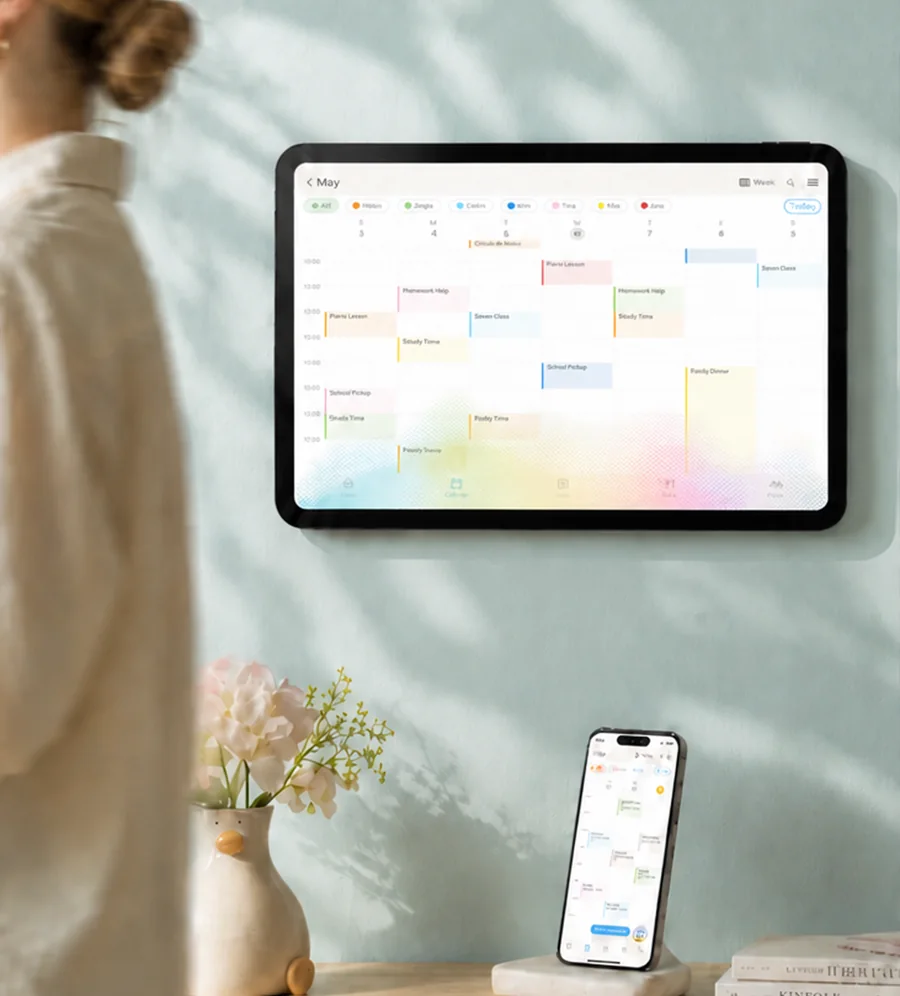
Imagine a pickup reminder on the kitchen display. It tells the right adult where to be after school. Beside it sits an appointment title that a visiting neighbor has no reason to read. Nothing dramatic has happened; the same calendar is simply serving different audiences.
A useful family calendar helps people coordinate care while leaving room for personal boundaries. You can review yours by checking three things: who has access, what they can see, and whether they still need it. Start with the calendar you already use. Keep a short note on paper if that makes the review easier—there is no new app to choose.
1. Decide who needs the calendar—and what they can do
Write down the people who currently use your family's plans: household adults, children, grandparents, a sitter, perhaps someone whose help ended last term. Include shared accounts and groups, as well as named people. Then add the places those plans appear, such as a phone, shared tablet or wall display.
Beside each person, write the job the calendar needs to help them do. “Grandpa needs Tuesday's pickup time and location” is more useful than “Grandpa needs access.” Ask whether each person needs to:
- Know when someone is available.
- Read the details of particular plans.
- Add or change plans.
- Decide who else can access the calendar.
Check the actual permission label before choosing it. Google distinguishes editing non-private events from editing with access to private details. A broader sharing grant takes precedence over a narrower one; an individual invitation cannot undo wider public access. Google's permission guide
Apple's private iCloud invitations require an Apple Account using iCloud. The owner can give reading or editing access, and only the owner can share that private calendar. Apple's private-sharing instructions
A public iCloud calendar has a different audience: anyone with its link can view and subscribe, even without iCloud. Apple's sharing overview
Match access to the agreed job, then check that it works. If a child wants to contribute, ask which optional details they would rather leave off a shared screen. They do not need to understand permission menus or justify wanting some space. An adult owns the settings and the follow-through.
2. Check the event details and the screen someone actually sees
Try a fictional event called “Practice appointment,” using made-up details. With a willing recipient, compare what you intended to share with what appears in their own account. Ask them to describe the title, location and notes they can see, and whether editing is available. Let them operate their device; there is no need to exchange passwords.
Your own view is useful for setting things up, but it cannot answer what another person sees. If their view differs from your plan, return to the audience list and investigate the relevant sharing route before adding real details.
In Google Calendar, private-event details remain visible to people with “Make changes and see event details” or broader access. The more restricted editing tier differs. Guests or booked resources can still reveal a private event's times and creator; default-visibility details may appear through their calendars. Google's event-visibility guidance
Now walk over to any shared screen. Stand where a visitor might stand. Check the calendar view and, separately, any notification previews that appear during ordinary use. A permission menu does not tell you whether someone can read a screen from the kitchen doorway.
For example, Skylight describes its physical Calendar as showing information associated with that Calendar, including externally synchronized events. Its invitation links let recipients view and manage the selected Calendar's information through the app. Inspect both surfaces. Skylight's permissions guide
For a shared display, you might choose a neutral title such as “Appointment.” Then give the responsible caregiver the necessary location, timing and care instructions directly through your family's chosen private channel. Check that they can find those details when needed. A vague calendar entry is not a complete handoff.
Consider an imaginary family whose child would prefer not to display the reason for an appointment. The shared calendar could show when the child and caregiver will be away. The caregiver receives the destination and any necessary instructions separately. Another adult handling pickup gets the relevant change to the afternoon plan. The child's preference shapes the optional wording; adults remain responsible for coordinating care.
For a paper calendar, the same exercise is about placement and wording: who walks past it, and what do they need to read?
3. Remove access that is no longer needed, then check again
Review the list when a sitter's arrangement ends, a household changes or a shared device moves. Include named people, groups, public links and the devices still showing plans. Agree which adult will make the changes so the task does not remain an unclaimed mental note.
In Google Calendar's desktop settings, remove the relevant person or group from the sharing recipients. Review public publishing separately under event access permissions. Work or school calendars can also have organization-wide sharing. Google's sharing instructions
On iCloud.com, removing a private participant, ending private sharing altogether and switching off Public Calendar are distinct controls. Use the one that matches the access you intend to end. Apple's instructions for stopping sharing
Where practical, ask the former viewer to cooperatively recheck their own view, and check any public link separately. Do not assume every change appears instantly. The purpose is to review continuing access; this is not a way to retrieve screenshots, exports or information someone already received.
Keep this small checklist with your family planning notes:
- We know who needs access and why.
- Their permissions match the tasks we agreed.
- We have checked public sharing separately.
- We have checked actual views, shared screens and optional details.
- Responsible caregivers can find all necessary care information.
- An adult owns the next review when people or arrangements change.
Bring the note to an existing family check-in if anything remains unresolved. The useful question is whether each person has what they need to care for one another, with room for everyone's dignity.